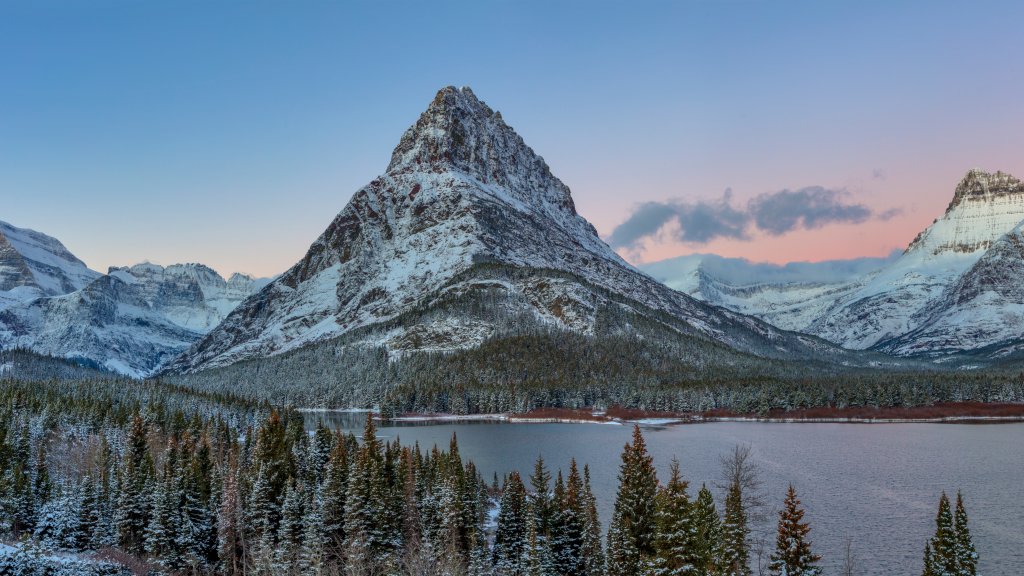
Mt Wilbur, Grinnell Pt and Mt Gould, Glacier NP, MT
Sign in to add this photo to your favorites and desktop wallpaper rotation.
Mount Wilbur, Grinnell Point, and Mount Gould are prominent peaks located in Glacier National Park, Montana, and they offer stunning views over Swiftcurrent Lake. Mount Wilbur is a notable peak in the Many Glacier area of the park. It stands at an elevation of about 9,321 feet and is known for its striking, rugged appearance. The mountain is named after Edward Wilbur, a prominent figure in the development of the Great Northern Railway, which played a significant role in the park's history. Grinnell Point is another iconic peak that rises prominently above Swiftcurrent Lake. It is often photographed due to its picturesque setting and accessibility. Grinnell Point is named after George Bird Grinnell, an influential conservationist and advocate for the establishment of Glacier National Park. The peak is relatively lower in elevation compared to its neighbors but is still a significant feature in the landscape. Mount Gould is one of the taller peaks in the area, with an elevation of about 9,553 feet. It is part of the Lewis Range and is known for its dramatic cliffs and steep slopes. Mount Gould is a popular destination for experienced hikers and climbers seeking to explore the rugged terrain of Glacier National Park. Swiftcurrent Lake, located at the base of these peaks, serves as a beautiful foreground to the stunning mountain backdrop. The lake is a popular spot for visitors to enjoy boating, fishing, and hiking, with several trails offering different perspectives of the surrounding mountains. The combination of these peaks and the lake creates a quintessential Glacier National Park scene, attracting photographers, nature enthusiasts, and adventurers from around the world.