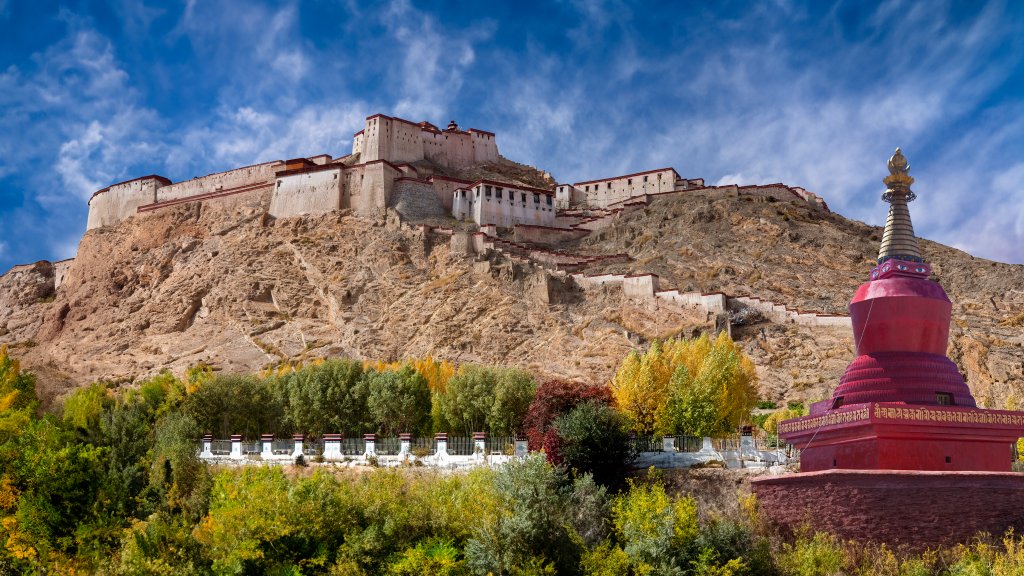
Gyantse Fort, Gyantse, Tibet,China
Sign in to add this photo to your favorites and desktop wallpaper rotation.
Gyantse Fort, also known as Gyantse Dzong, is a historic fortress located in the town of Gyantse in the Tibet Autonomous Region of China. The fort is perched on a hilltop overlooking the town and offers panoramic views of the surrounding landscape. It is one of the best-preserved ancient fortresses in Tibet and holds significant historical and cultural importance. The fort dates back to the 14th century and was originally built as a military stronghold. It played a crucial role in the defense of the region against various invasions and conflicts. Gyantse Fort is particularly notable for its role during the British expedition to Tibet in 1904, when it was the site of a fierce battle between Tibetan forces and British troops. Architecturally, the fort is an impressive example of traditional Tibetan fortress construction. It features thick stone walls, watchtowers, and a series of defensive structures. Inside the fort, there are remnants of ancient buildings and temples, although many of them are in ruins today. Visitors to Gyantse Fort can explore the ruins and enjoy the breathtaking views of the Nyang Chu Valley and the surrounding mountains. The fort is also near the famous Pelkor Chode Monastery and the Gyantse Kumbum, a large chorten (stupa) with numerous chapels and exquisite murals. Gyantse Fort is a popular tourist destination for those interested in Tibetan history and culture. It offers a glimpse into the region's past and provides a unique opportunity to experience the architectural and historical heritage of Tibet.